Get started
Make your first PDF
Open a deal, click a button, get a branded PDF attached to the record. That's the whole product.
Last updated Apr 8, 2026
The whole point of FolioPDF is one loop:
Open a record → click Generate → the PDF appears on that same record.
You don’t download anything. You don’t send anything. You don’t switch tabs. The PDF lives in HubSpot from the moment it exists.
Step by step
1. Open a record in HubSpot
Open the deal, contact, company or quote you want a PDF for.
2. Find the FolioPDF card
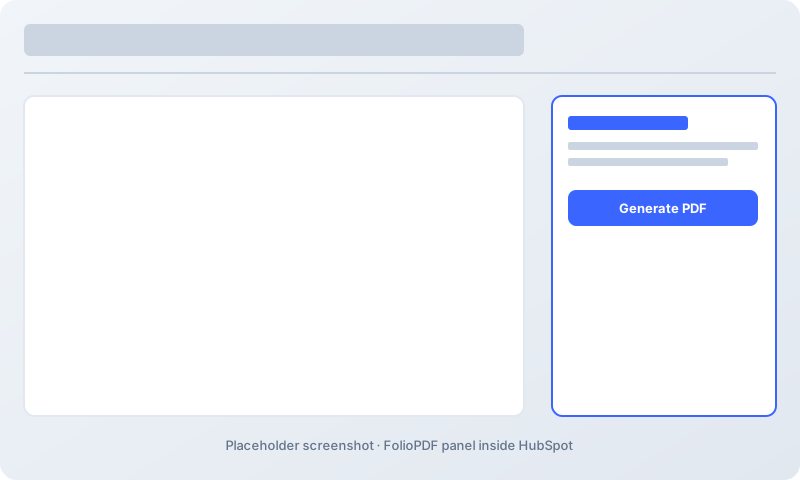
Look at the right sidebar of the record. You’ll see a card called FolioPDF. It lists the templates you can use (a proposal, a quote letter, a contact briefing, and so on) and any PDFs you’ve already made for this record.
3. Pick a template
Click the template you want. The card will show you a one-line description so you don’t have to guess.
Not sure which one to pick? See the template catalog. It has a preview of every template.
4. Click Generate
Hit Generate. You’ll see a small spinner for a second or two while FolioPDF builds the PDF (typically 1.5–3 seconds).
5. The PDF is on the record
When the spinner stops, your PDF is already attached to the record in two places:
- As a note on the record’s activity timeline (so anyone looking at the deal sees it)
- In the HubSpot Files library (so you can find it later by name)
You don’t need to upload, save, or move anything. The PDF is in HubSpot.
What you’ll see
From the moment you click Generate to the moment the PDF appears on the record, the only thing you do is wait a second or two. There’s no download dialog, no “save as” prompt, no email step.
If you want to send the PDF to a customer, use HubSpot’s normal send a file flow from the activity timeline, the same way you would with any other attachment.
What to do next
- Make every PDF look like your company → Branding
- See what each template looks like → Template catalog
- Something not working? → Troubleshooting